How to Give leadPops Access to Your Ad Account
If you utilize a Business Manager to manage your Facebook assets (Ad Account, Pages, etc), then you can actually send us a request to access your Ad Account!
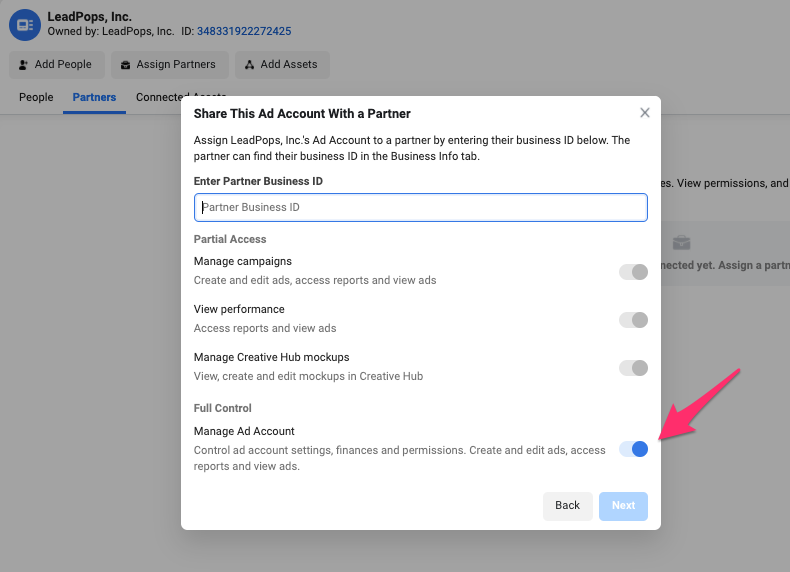
All you need to do is follow the steps below. Our Partner Business ID that you will need is 348329428939341
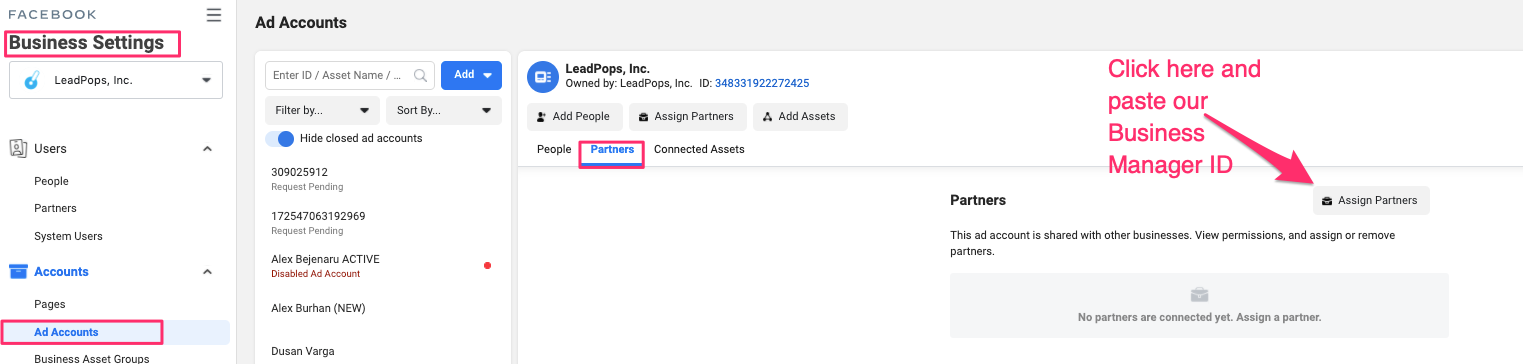
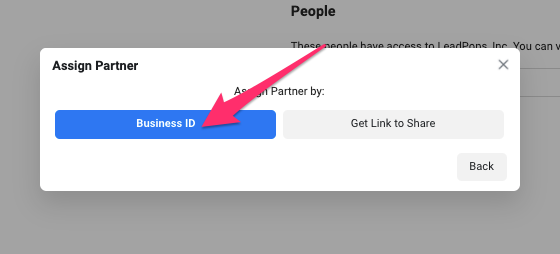
- Business Manager settings > Ad Accounts > select the correct ad account > Partners > Business ID > Paste ID and send request
Below are the steps to accept a pending request to access your Facebook Ad Account.
- Access your Ad Account Settings by clicking the link below
- Confirm you are in the correct ad account in tot top-right drop-down (if not select the correct one)
- You should see it say "Ad Account Roles" and a request coming from leadPops Inc.

Video Assistance: https://youtu.be/dPBpPZc37-g?t=54
- Video Starts at 0:54
- Information ends on 3:28
NOTE: If when you click on the link Ad Account Settings link above, and you do not see a request from leadPops Inc, but instead see the below, you need to accept the request in your Business Manager. Just follow these additional steps.

- Click "Open Business Settings". - This will take you to your Business Manager Settings
- Once in your Business Manager Settings, you will see many options on the left side-bar. You need to scroll to the bottom and find "Requests"
- There should b a little number next to it letting you know you have a pending request
- Click "Requests", and under "Received" you will see the pending request for your Ad Account.
- Click "Approve"!

Below are the steps to accept a pending request to access your Facebook Page.
- Go to your business page and look for the menu on the left-hand side.
- Scroll to the bottom and click on "Settings".
- Then, on the left-side, there will be a button for "page roles."
- Once you click on "page roles", scroll down a bit and you should see an Agency level request from "leadPops Inc. - Click "Respond to Request"
- Last step, click "Continue" to confirm access!


Video Assistance: https://youtu.be/GXzu4fHpeBc?t=201
- Video Starts at 3:21
- Information ends on 3:28
Comments
0 commentsPlease sign in to leave a comment.